Free Republic
Browse · Search
General/Chat
Topics · Post Article

To: All

how do you put images on your posts?


2,311 posted on 03/04/2008 8:01:55 PM PST by weighted Companion Cube
[ Post Reply | Private Reply | To 2310 | View Replies ]


To: weighted Companion Cube
Nully's Quick FR HTML Guide:

(In all cases remove the space between the < and the following character)

Basic formatting:

Line break < br>
Paragraph break < p>
< u> underline < /u>
< i> italics < /i>
< b> bold < /b>
< font color=red> Red font < /font>
< blink> blink < /blink>

< font size=1>Smallest FR font< /font> Displays as:
Smallest FR font

< font size=7>Largest FR font< /font> Displays as:
Largest FR font

Or

Step font size up or down with < big>bigger< /big>

and < small>smaller< /small>

"Hidden" text: < font color=white> White font < /font>
Drag cursor over blank area to highlight to read...

Posting a link:

General:
< a href=[web address]>[title]< /a>
Example:
This: < a href=http://www.freerepublic.com/focus/f-news/1179145/posts>Iran starts atom tests in defiance of EU deal< /a>
Posts as this:
Iran starts atom tests in defiance of EU deal

Posting an image:

General:
< img src="[web server location]">

Clarity is needed - you can't just snag a favorite picture from a desktop folder...it has to be hosted someplace to be transferrable to our posts. ~ ErnBatavia

Example:
This: < img src="http://www.notablebiographies.com/images/uewb_09_img0611.jpg">

Posts this:
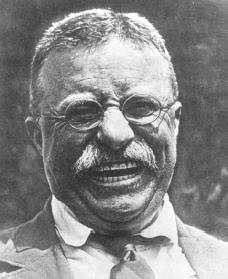


Tip: control the size with "height=nnn" like so:

This: < img height= 200 src="http://www.notablebiographies.com/images/uewb_09_img0611.jpg">
Posts this:

While This: < img height= 100 src="http://www.notablebiographies.com/images/uewb_09_img0611.jpg">
Posts this:


2,313 posted on 03/04/2008 8:40:22 PM PST by null and void (I slept better when I thought our betters actually were better...)
[ Post Reply | Private Reply | To 2311 | View Replies ]

To: weighted Companion Cube
First you have to 'save' your picture.

Find a picture you want to post, and right click it, and then click 'save as'. (Type in anything you want in the box. Just write it down - or be sure to remember the name of your picture.)

Then click 'save' and it is now in your compter.

Then type in 'http://www.tinypic.com/' into your browser.

When it opens up - click browse.

Browse will take you to your picture file.

Type in the name of your picture in the box.

Click "open".

Then you will be brought back to tinypic.

Click "upload"

When it is uploaded, you will see the picture on the right of your screen. (This usually takes a minute or two.)

There will be four ways to "COPY" it.

Click on the last (fourth) one. It will turn blue.

Go to edit and copy it. (Or, right click, and click copy.)

Now, your picture is ready to post.

In the 'post' box, you must enclose what you copied with this "<" followed by "img src=" and this ">"

After you put the first arrow (<), type "img src=" without the quotes.

Then click paste, and the link will appear, right after the "=".

Just remember to close it with ">" without the quotes.

Here is what it should look like:

Click preview. If it is too big - well, we will talk about that later.

Hope I helped, some. ;-)

It might help to print this out - and follow it step by step. After awhile, you won't need the printed copy.

~yorkie

2,315 posted on 03/04/2008 9:56:09 PM PST by yorkie (No surgeon can perfect God's work)
[ Post Reply | Private Reply | To 2311 | View Replies ]

Free Republic
Browse · Search
General/Chat
Topics · Post Article


FreeRepublic, LLC, PO BOX 9771, FRESNO, CA 93794
FreeRepublic.com is powered by software copyright 2000-2008 John Robinson