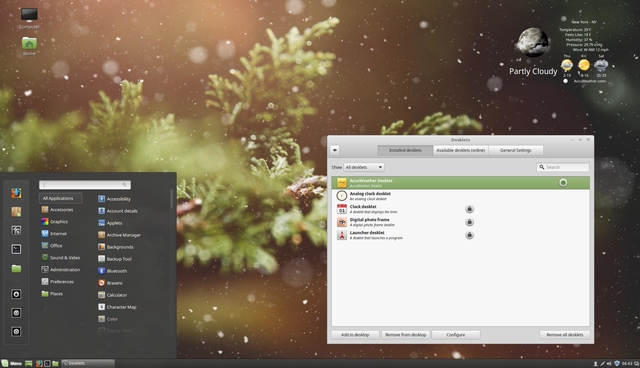
 And you can run several workspaces at a time if you like.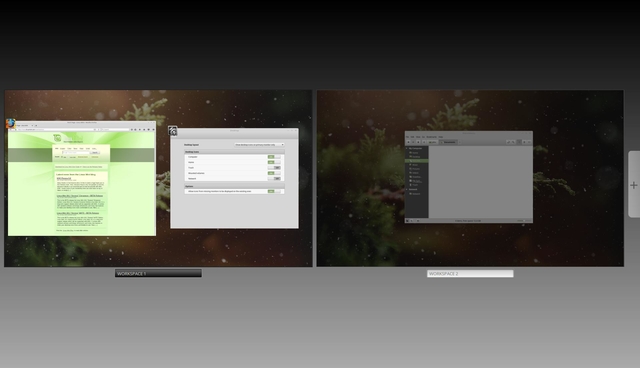
Posted on 01/14/2019 6:37:20 AM PST by ShadowAce
The name "Linux" technically refers to an operating system "kernel", a single but key component of a complete operating system. In everyday use, the term "Linux" is frequently used to refer to a complete operating system which consists of the kernel and some of the thousands of other programs required to make an operating system useful. Much of the important system software that is typically installed on a Linux system comes from The GNU Project, a project to build an operating system made entirely of free software.
The first Linux kernel was created by Linus Torvalds. It was first released on 5 Oct 1991. It was started as an x86-only, single-processor operating system, but grew to become one of the most ported pieces of software. Other parts of a complete GNU/Linux system come from other projects such as the GNU project, and are integrated into a complete GNU/Linux OS by your supplier. Usually your supplier will assign their own version number to the integrated whole.
The GNU Project is overseen by the Free Software Foundation, founded by Richard Stallman, who believes that the people should use the term "GNU/Linux" to refer to such an operating system, because so many of the required programs were in fact, written as part of the GNU Project.
Most Linux distributions have a special type of CD, called a live CD. If you insert this CD and then restart your computer, the live CD will run Linux on the computer while avoiding changing anything on your computer as much as possible. For example it won't normally install any files on your PC, but run only from the CD. You can give the operating system a try to see if you like it without the risk of installing anything on your hard drive. You should remember that linux typically runs very fast - if the system seems slow, it is because it is running off your CD drive, not your hard drive.
There are dozens of different Linux distributions. Here are some ways to help you narrow down the options to a short list.
Try a distro chooser, like http://www.zegeniestudios.net/ldc/. Often several different distributions will meet all your requirements. Your final choice from the short list may be based on whim or personal taste.
The easiest way to begin using a Linux system may be to use an already running system. For example, some systems may be available in various educational or work environments. In this case you only need to contact the appropriate administrator and obtain a user ID and password. You will only be able to explore the system to a certain extent, but the first steps can be taken without having go through the installation process.
Another trouble-free way of obtaining a Linux system is to buy a computer with Linux pre-installed. The number of vendors selling such systems is constantly increasing.
... button to browse for your iso, next choose your drive letter in the "Type" column and click OK..lsblk.sdb 8:16 1 2.0G 0 part /media/NO NAME Note down the sdX, in this example sdb, NOT sdb1 etc.
sudo umount /dev/sdX15. Browse to the directory where you downloaded the iso with the cd command and type this command. (Assuming the iso image is ubuntu-gnome-16.04.1-desktop-amd64.iso and your drive is sdb)
sudo dd if=ubuntu-gnome-16.04.1-desktop-amd64.iso of=/dev/sdb bs=1M
6. The command will work in the background, when you return to a prompt, it will be finished.
A live CD/DVD is not recommended, use this procedure only if you do not have a computer that can boot from USB.
Windows (7 and later)
K3b, Brasero etc. all have a function to burn images to CD/DVDs.
Live CDs don't need to be installed to your hard drive for you to use them. Instead, you simply load the Live CD into your CD-ROM drive, restart your computer and a complete running Linux system should boot up with little, if any, intervention. There are some difficulties for some distributions working with certain sets of hardware, but most systems will boot with little to no problems.
A system running a Live CD often tends to be a little slow. This is because information must be fetched from the CD-ROM (which is much slower than a hard drive) and because the Live CD must store a lot of information in memory that would normally stay on the hard disk. Don't let this fool you into thinking that Linux is a slow operating system though. Linux systems are normally very fast and reliable. If you try a Live CD, it is recommended (unless you are trying a MiniLinux) that the computer you use be a relatively recent one with a generous amount of memory (256MB or more). For most people, this should provide a trouble free way to begin to get to know Linux. Sometimes the entire Live CD can be loaded into RAM if a sufficient amount is available (say around 1GB) and this will offer excellent responsiveness.
Live CDs are a great way to test whether certain hardware is likely to be compatible with Linux. Just pop the disk into the CD-ROM drive of the system in question and reboot as described above. Most hardware problems (if there are any) should make themselves obvious during normal use.
If your Live CD is ignored and you find yourself booting into your normal operating system, you may need to alter some settings in your BIOS. While this may sound daunting for some users, it's actually a lot easier than it sounds.
Begin by restarting your PC and when the boot process begins again you will need to strike a particular key on your keyboard. The key you need to strike will usually be displayed on the computer screen and is often the 'Del' key. Common alternatives are 'F1', 'F2', 'F10' and 'Esc'. The proper key will vary with your computers manufacturer. Once the proper key is struck your computer screen will display the 'BIOS' or 'Setup' editor. There are usually some simple instructions on the bottom of the screen, or off to one side, telling you how to navigate around the various choices and make changes. Be sure to read these before continuing, then look for something labeled 'Boot' or 'Boot order'. Using the instructions you read a moment ago, change this so that your CD-ROM is the first item in the boot order. If you think you've made a mistake, there is usually an option to 'Exit without saving changes'. If you don't see that option, holding down the 'Ctrl' and 'Alt' keys and pressing the 'Del' key should save the day. If all goes well 'Save and Exit' and your computer should boot up, checking the CD-ROM for your Live CD as it does so. If you have run a Linux Live CD and have rebooted to use your regular operating system and have arrived at a notice declaring "Missing Operating System" or "Error on System Disk", or any scary notice stopping you from loading up as normal, it is likely that the computer has "forgotten" that you normally load up from the hard drive and has started to look for your operating system in the CD Drive. To fix this, follow the instructions above accordingly to your system but instead of selecting your CD drive as the boot device, select your hard drive.
And that is also a great idea! Really appreciate your efforts with this. It’s a revolution! lol
And you can run several workspaces at a time if you like.
Something I would like to add if you don’t mind. The cool thing about linux is that when you do any software downloads using the Software manager, Synaptic or the Command Line it does a system check for dependencies and will also go grab any extra files the program might need to run if you don’t have these yet. Synaptic is a little better than the software manager for finding a greater variety of available programs. Both come bundled with Cinnamon and Mate.
What a world of difference from Microsoft third party program installation issues. How many times have we installed a program and it wouldn’t work? Then have to go researching, testing, and do trial and error to find the elusive tools needed that finally make it work correctly three days later? The work to diagnose and cure it is all on the users time and labor.
Linux does all this for you and adds the extra needed dependencies as part of the download and install process. It is one of the features gives Linux a big advantage over MS.
I met him you know. Even had a conversation.
He is even more stupid in person than that video shows.
Anyway, I just downloaded and put the latest Mint XFCE on a USB and booted into the old HP g7 notebook (1.65 GHz, 2 cores) and which boots to a sparse desktop. I will try to describe how it went and as compared to Windows 10.
I accessed wireless wireless by clicking on the wireless icon in the system tray, and I connected with the password fine, despite the card being 2012 vintage.
The difference btwn this and Windows on this was that placing the cursor on R. click on the wifi icon in the system tray shows no pop up, and left click does the same as right click, showing available connections as barely visible (I am sure that can be changed) minute icons, and with the the strongest signal (ours) being buried at the bottom of the submenu More Networks. In Windows a cursor pop up shows what connection you have (though it should tell you the general strength), and a left click shows available connections. In the programs menu, Mint Network connection and settings in Windows both only show wired connection as an available option (though it is not connected) until you connect to a wireless.
Looking in the programs menu, a R. click on program icons does not provide any target info or option to go to it, unlike Windows.
Looking into installing Mint, I found accessing Disks was under Settings, not System where I would expect it (though Gparted is there), yet it was not seen at all when you choose the All Settings options, and which simply does not show all settings.
Disks showed the Windows drive and partitions and how much free space the selected drive had. It does not show all the drives at the same time in a graphical interface and thereby showing free space as Windows does. No could i see files in the drive all. Also, right clicking on a drive does not result in any menu, whereas in Windows explorer and drive management many options are offered thereby, including disk partitioning in drive management.
Instead, in Mint the latter option is provided by Gparted, a good piece of partitioning software I had before However, I did not want Mint to use all the disk, yet Gparted would only let me delete the Windows restore partition (which somehow had been partly deleted already).
Proceeding with the installation anyway, i choose the place Mint alongside Windows (it said i had multiple OS) in a 8GB partition (since I could not resize the Windows partition without further research), and so Mint warned me that a 5.8gb partition was too small, and that the installation may fail. i went ahead anyway, planing to manage disk space more late.
I did not choose to install licensed drivers and codecs, but the installer cashed anyway due to lack of space.
. That's for tonight!
Others say it illegal to distribute them, and thus using them is using stolen goods. It maybe true for Win. 10 also though i upgraded from Win. 8 pro which licensed them for it i think (hope).
From what I understand the XFCE is about the lightest of them all and designed for minimal hardware. It may sacrifice some functionality to be lighter.
I highly recommend freeing up some space and trying the full cinnamon 18.3. I have talked to KDE users who switched to this and said they will never look back. It really does come full featured and works just like Win 7. Everything works, the menus, pop ups. everything. And it’s stable. They now have newer versions of it but I would let the dust settle a bit on these to let them debug it more.
Put yourself in the non techy mode and just give it a try like you are a new user. Don’t adjust or pick and choose anything, just do a full boxed default install. I think you will be quite surprised. :)
Thanks. I do not like having to open terminals to do such every time, though sometimes I do commands in Windows, but i just deleted a protected hibernation by doing a / click and choosing Take Ownership.
I like menus btw the way and safe freeware such as Right Click Context Menu Extender makes it easy, plus T-clock Redux Did i say i like click menus?
Low resolution compilation


I'm running Linux Mint KDE Edition which has plasma as a desktop.
That was my favorite since it seemed to offer more options.
With linux, most anything you'd want access to is in your Home folder, including all .config files for your programs. Those are hidden files as they start with a dot/period but I think every file manager has a toggle to "view hidden files". There are more files in folders called usr and share that can be accessed/edited by you. Then there's folders named bin, etc, var that can only be edited by the root user.
Been there! I liked Thunar more than other file managers.
To start a program that's not already in my favorites, which is on the left panel(task bar like thing), I hit the super key and just start typing the name of the program. when it becomes highlighted, hit Enter
For me with arthritic fingers i often use hotkeys, including remapping CapsLock to ctrl+c (CapsLock::^c) with AutoHotKey,
The thing I like most about linux, is FREE.
Yes, I like that too, and thank God for those who provide good freeware. But the Windows 10 Pro that i have now only cost 29.00 since that was what the retail upgrade from XP to W.8 cost, and then the 8.1 upgrade was free, as was the Windows 10, though I took it off one machine and put it on a new one (upgrade was retail i have been told).
It may not have the widely used commercial software like photoshop but there's an equivalent for almost anything.
With Firefox and OpenOffice being primary ones, but there has been a lot i have not found truly comparable to Win. freeware, including AutoHotKey. As as we are still using a landline, the ol Phone Tray free (do not try to download the free version anymore) tells me thru the modem who is calling, and keeps and endless record ('cept for unlisted ones). Would not work with WINE.
I use thunderbird for my email client
Same here. Thanks for you helpful spirit!
So is all linux... :)
Indeed! Though there have been some attempts to be commercial with it. Remember Lindows?
I am prone to explore and customize, and one of the things I do with Windows is locate the Send To folder (%UserProfile%\AppData\Roaming\Microsoft\Windows\SendTo ) make a shortcut to it and place one in it, and that way you can send other shortcuts to it, such as OpenOffice, and then R. click on a web page for instance and send it to the application of your choice to open it, or send to a folder such as the Start up folder .
Of course I do not need to always know where a program's .exe is to do that, as I could just send shortcuts to applications in the Start menu to the Send To, bu often i helps to know where the executable is. The default Open With option is usually too restricted in what it offers, unless you go hunting.
But God did not make clones, but variety, and so it is a blessing to have many options.
That and https://en.wikipedia.org/wiki/LXDE.
I highly recommend freeing up some space and trying the full cinnamon 18.3. I have talked to KDE users who switched to this and said they will never look back.
Too much i think for the old laptop i wanted to install Mint on. Went back in Windows and was able to format another 14gb partition. See you tomorrow, God willing.
Mate and Cinn don’t allow you the control KDE has over everything. Have you ever tried KDE?
It may be designed for that, but I really like how it confirms to my work style. I use it exclusively because it works like I do. I don't need, or want, all the eye candy KDE provides, nor do I like the way Gnome works.
I'll tell you, my earliest experience with Windows and Linux led me down the Windows / Windows Server path in the early 1990's however that changed in the late 90's when I became the Client/Server Engineering & Operations Director at a very large advertising agency in Chicago. We had a healthy mix of Windows and Linux servers by the time I left there including Windows, HP-UX and Red Hat Enterprise Linux with RHEL starting to replace HP-UX.
Fast forward to today and the very large bank I've been with the past 13 years has 3x more RHEL VM's than Windows. Last count I saw was near 30,000 total VM's with just over 20,000 of them being RedHat Enterprise Linux and the remainder being Windows Server and a smattering of customized Linux Appliance VM's thrown in for good measure.
There's a reason Microsoft's Azure Service adopted Linux - they saw what the rest of us working in the industry see: a shrinking Windows Server market share in favor of various flavors of Linux.
Personally, I have one Windows machine at home. I've converted the rest of my machines over to Ubuntu 18.10 with several different desktop environments on them including Gnome, KDE Plasma and Cinnamon.
About the only time I use Windows anymore is for a legacy application I want to run that I cannot get to run under Linux/Wine or for Microsoft Office specific functions I need and then I keep that machine OFF the Internet because I just do not want to deal with Viruses/Malware/Trojans anymore or have to keep updating those applications to protect that system.
I also don't want to pay Microsoft licenses anymore so yes, there's a bit of me being super-cheap and not spending money I don't have to. It's also a great way to keep my skills updated as I'm 56 and am much older than many of the people I work with in the industry. Have to stay at least a step ahead of them!
Honestly, During that period of my life I was working 24-7 at my day job and only had time to get on a computer long enough to check email and order parts. I just didn’t have time to play with computers at all. So I blinked as that passed by and missed it. lol
I didn’t really have time to get serious and start digging back into it until 2010 because I wanted to teach myself how to develop websites as another skill. Along with this came the need to understand more about different operating systems and browser compatibility backwards from the webscripts to the local environments. Then Win 10 came out and I was done with MS and jumped off the MS train.
But I just read up on it, pretty interesting how so many source elements have now come together. :)
“About the only time I use Windows anymore is for a legacy application I want to run that I cannot get to run under Linux/Wine or for Microsoft Office specific functions I need and then I keep that machine OFF the Internet because I just do not want to deal with Viruses/Malware/Trojans anymore or have to keep updating those applications to protect that system.”
Yep... One of the best attributes of Linux. All those problems and dependencies on MS are gone. It’s not theirs anymore, it’s YOURS.
No I have not, but I have done a lot of homework on linux versions and have talked to hundreds of linux users over the the last 8 years before finally pulling the trigger myself. I am not one to jump out of the frying pan into the fire.
I think what we have here in differing perspectives is that there are two different classes of users, and the difference needs to be recognized and each needs to be addressed totally separate when recommending versions.
The first class are those who are “techie” like yourself who have learned to, or don’t mind operating a techie version that would be far too much for the average point and click GUI user to even want to try because of the extensive learning curve.
Then there are the average noobs who have very minimal computer skills and just want and need a very easy to use point and click GUI OS that feels familiar with a very minimal learning curve because “techie” scares them off. Folks who have never used DOS or even a DOS prompt in windows.
My personal interest in promoting Linux is aimed at noobs with very minimal skills who will never dig into the inside of the engine or want to. They just want an easy to use point and click GUI OS and software similar to what they are already used to using like Win 7. Users who are intimidated by even making a bootable USB stick.
There is a world of difference between the two and this truly needs to be substantiated and considered when recommending a linux version. What an IT professional might prefer and use cannot be assumed as a version noobs are going to be comfortable with or even try because it’s above their minimal skills and might always be.
Even though I had some skills myself I was a complete noob to Linux and did a lot of homework before deciding to try what was recommended to be the easiest to use for a first time user. And it is... For a first time user with minimal skills the cinnamon 18.3 has now recently evolved into something everyone new can use right out of the box without needing to “work on it”.
It was familiar in feel and function, Highly customizable with point and click GUI menus, familiar GUI windows and folder use, a great bundled software package of GUI tools and programs, A very simple auto-install utility, it will handle everything Linux, and just plain simple to use as a point and click OS. And the whole boxed set is still only 2 gigs!
I really think this is very important to keep in mind when recommending versions to new users with very minimal skills. Folks who want something full featured and easy to use without needing to “tweak” it or add a bunch to make it easier to use.
Make sense? In promoting Linux it needs to be as painless as possible for most new users or it ain’t going to happen. That first step is the most important, after that they will like it and want to learn more about it and get more techie with it. But getting their foot in the door is the most important thing at this point. For most it’s a huge leap as it is.
I understand, But keep in mind your skills are very advanced compared to the average noob user. If we want to see more switch and enjoy linux, it needs to be made as painless as possible with all the GUI eye candy because this is what they are already used to and looking for. :)
“not just for techie types anymore, easy to use for anyone” should be the message.
Disclaimer: Opinions posted on Free Republic are those of the individual posters and do not necessarily represent the opinion of Free Republic or its management. All materials posted herein are protected by copyright law and the exemption for fair use of copyrighted works.